 English
  Arabic
  Chinese
  French
  Russian
  Spanish
 Sometimes a delegate needs their booking refunded — they can no longer attend, or they’ve been charged in error. Refunds are handled directly from the order, and once you confirm the amount the money is returned to the delegate’s card automatically through Stripe, with an updated receipt issued to them. This guide walks through doing it correctly, including how to handle the card processing fee and your conference’s own terms.
Before you refund: check your terms
Start with your conference’s terms and conditions. Your refund policy sets out what a delegate is entitled to — for example, a full refund up to a certain date, a reduced refund (less an administration fee) after it, and no refund close to the event. The policy, not the request, decides how much you give back. If you’re unsure, confirm the amount with your finance lead before processing anything.
Opening the order
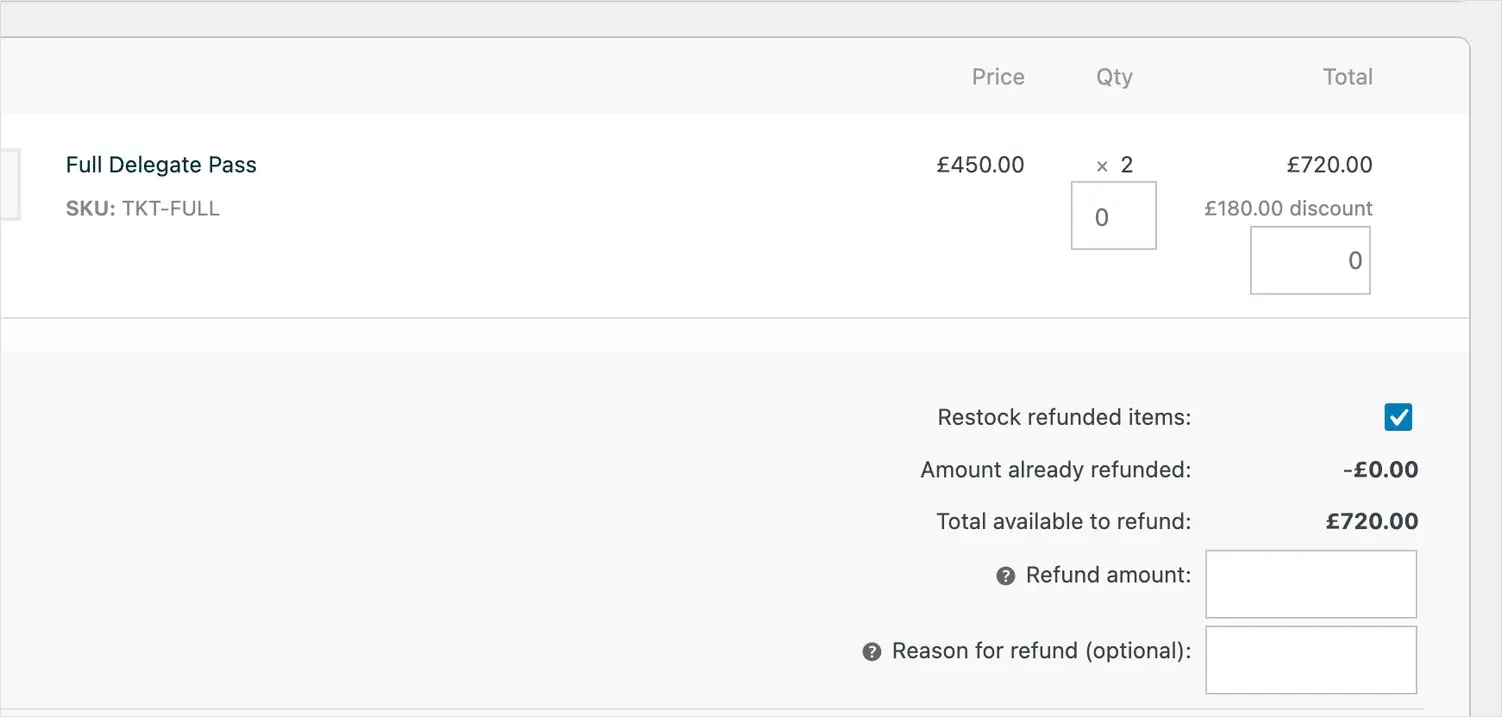
Go to Orders, open the delegate’s order, and select Refund. You’ll see each item on the order with the amount paid, and a box where you enter the amount to return.
Full or partial refund
You can refund the whole order or just part of it. A partial refund is what you’ll use most often — for example, returning the ticket price but keeping an administration fee, or refunding one ticket from a group booking. Simply enter the amount you intend to return, rather than the full total.
Removing the Stripe fee (and any admin fee)
This is the important part. When a delegate pays by card, Stripe charges a processing fee on the transaction. When you refund, Stripe keeps that fee — it is not returned to you. So if you refund the full amount the delegate paid, your conference is left out of pocket by the fee.
To avoid this, deduct the original Stripe processing fee from the amount you refund. In practice that means:
- Start with the amount the delegate paid.
- Subtract the Stripe processing fee from the original transaction (this is non-refundable).
- Subtract any administration or cancellation fee your terms and conditions allow.
- Refund the amount that’s left.
Enter that net figure in the refund amount box. Being consistent about this — and stating it clearly in your terms — keeps refunds fair to delegates while protecting the conference’s budget.
Processing the refund through Stripe
Once the amount is right, choose Refund via Stripe. This does everything for you: the refund is sent to Stripe automatically, the money is returned to the same card the delegate paid with, and the order is updated to show the refund. There’s nothing to process by hand in Stripe — it’s all handled from the order. The refund usually reaches the delegate’s account within a few working days, depending on their bank.
Note: choosing a manual refund instead would mark the order as refunded in your records but would not return any money — always use Refund via Stripe to actually pay the delegate back.
The delegate’s updated receipt
You don’t need to tell the delegate separately. When the refund goes through, the order status changes to Refunded and an updated document — a credit note — is generated and sent to them automatically. Their records then match exactly what they’ve paid, and they have written confirmation of the refund without you writing a single email.
Keeping your records straight
Every refund is logged against the order, with the amount and the date, so you always have a full history. At the end of the event this makes reconciling straightforward — your refunded orders, and the credit notes that go with them, are all in one place.