 English
  Arabic
  Chinese
  French
  Russian
  Spanish
 Gestión de resúmenes is the coordinator’s control centre for the whole submission process. From one screen you can see every abstract, allocate it to reviewers, follow the scores as they come in, and record the committee’s final decision. This guide explains how to run a review round from here.
Getting an overview
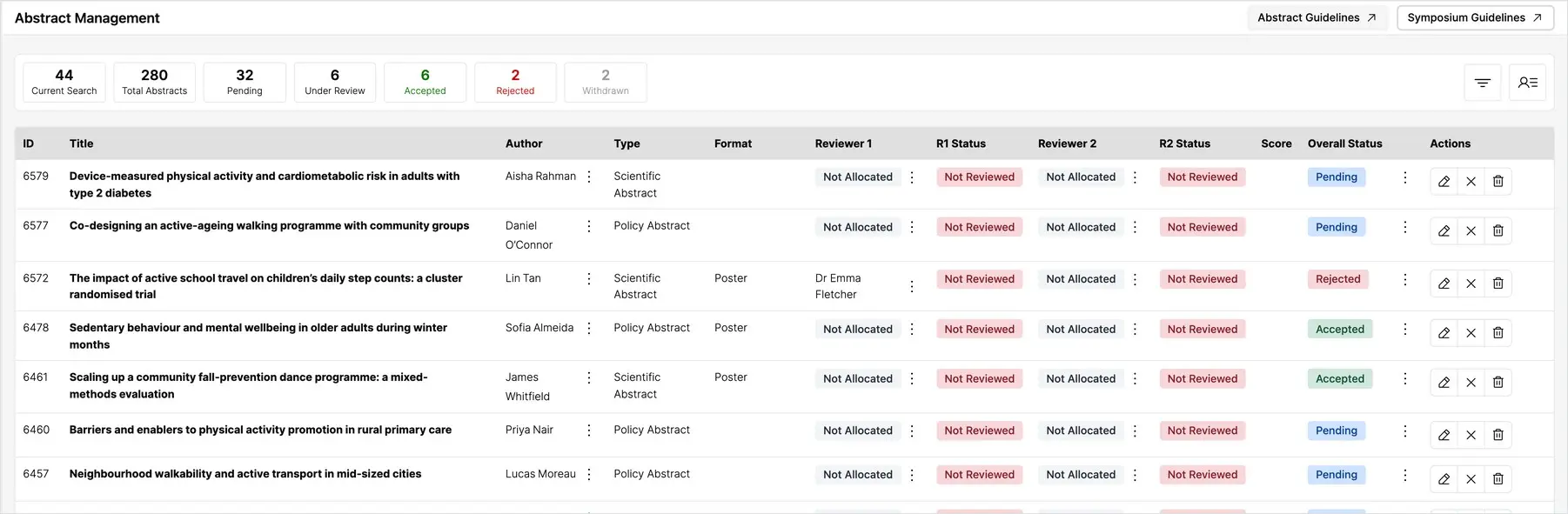
Open Gestión de resúmenes from the Administration menu. The cards along the top give you a live count of where everything stands — Total Abstracts, Pending, Under Review, Accepted, Rejected y Withdrawn — and the table below lists every submission. Use the search and filter controls to narrow the list, for example to show only abstracts in one category or at one stage.
Reading the table
Each row shows an abstract’s title, author, type and format, alongside the review information you’ll be working with:
- Reviewer 1 y Reviewer 2 — the two reviewers allocated to the abstract, or Not Allocated if a slot is still empty.
- R1 Status y R2 Status — whether each reviewer has completed their assessment, and their score once they have.
- Score — the combined score from the reviews.
- Overall Status — the abstract’s current decision: Pending, Under Review, Accepted, Rejected or Withdrawn.
Allocating reviewers to an abstract
Each abstract is assessed by two reviewers. Use the controls beside the Reviewer 1 y Reviewer 2 columns to allocate a reviewer to each slot, choosing from your accepted panel. Reviewers who selected the abstract’s category are the natural fit, so matching them to work in their field is straightforward. Once allocated, the abstract appears in that reviewer’s My Reviews list for them to score.
Following the reviews
As reviewers submit their assessments, the R1 and R2 status columns update from Not Reviewed to a score, and the combined score appears. This lets you see at a glance which abstracts are fully reviewed and ready for a decision, and which are still waiting on a reviewer.
Recording a decision
When an abstract has been reviewed, set its Overall Status to record the committee’s decision — typically Accepted or Rejected. The scores and reviewer recommendations guide the decision, but the final call is yours. Authors are notified of the outcome, and accepted abstracts become available to build into your programme.
Editing or removing an abstract
The actions at the end of each row let you open an abstract to view or edit its details, or remove it if necessary. Take care when removing — it’s usually better to mark an abstract Rejected or Withdrawn than to delete it, so you keep a complete record of everything submitted.
Next steps
Once decisions are made, your accepted abstracts flow into two places: Event Programming, where you arrange them into sessions, and the Abstract Book Designer, where you produce the printed book. See Building your conference programme y Creating your abstract book.